
Trying to get more done can feel like a constant battle, right?
Whether it’s for work or just life in general, we all want to be more productive.
The good news is, you don’t need to spend a fortune to get organized and focused. There are tons of great apps out there that are totally free and can really help you out.
I’ve checked out a bunch of them, and these are some of the best free apps for productivity that actually work.
Key Takeaways
- Plaky is a good option for teams needing to organize their workflow and improve communication.
- Ayoa offers a visual way to manage tasks, which can be helpful for some people.
- TickTick is a versatile tool for managing various tasks and to-do lists.
- Habitica turns your tasks into a game, which might make chores more fun.
- Todoist is a solid choice for creating and managing to-do lists with a lot of features available for free.
1. Plaky
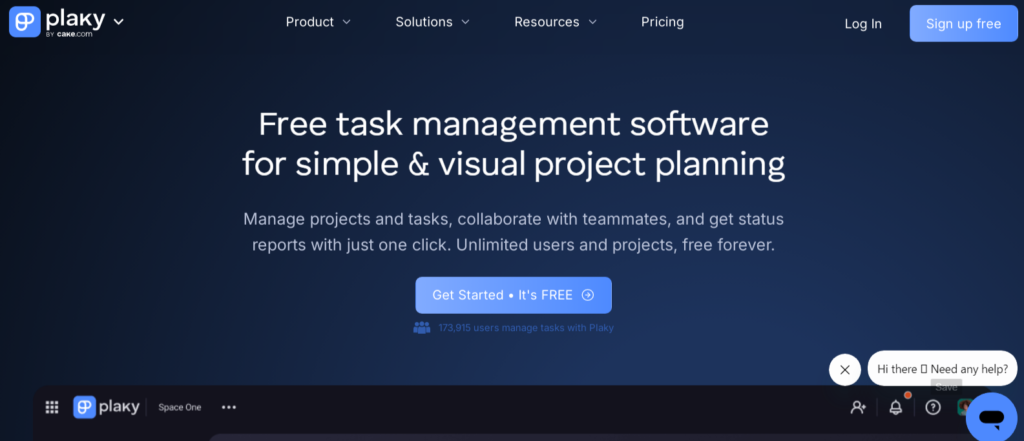
Plaky is a solid choice if you’re looking to get your workflow organized, especially for teams.
It really helps keep track of what needs doing and where everything stands.
The boards are pretty practical; you get a central spot for all your tasks.
You can easily see what’s going on, check how each part of a project is moving along, and even chat with your team right there in the comments.
One small thing I like is the emoji reactions in the comments. It’s a quick way to show you’ve seen a message without adding to the noise.
A simple thumbs-up does the trick.
Plaky lets you break down big jobs into smaller tasks, each with its own deadline, who’s responsible, and how important it is.
They’ve even added sub-items recently, which means you’re less likely to miss any little detail.
Here’s a look at how you can view your work:
- Table View: Great for a quick overview of all your tasks.
- Kanban View: Helps you see tasks moving through stages like ‘To Do,’ ‘In Progress,’ and ‘Done.’
- Gantt Chart View: Gives you a clear picture of your project timeline.
The main drawback I’ve noticed is the limited number of integrations. Right now, it mainly connects with Clockify for time tracking, which is handy, but more options would be nice.
They’ve also added conditional coloring, which lets you color-code your data.
This makes it easier to spot important information at a glance and can speed things up.
2. Ayoa
If you’re someone who thinks better with a pen and paper, or just likes seeing your ideas laid out visually, Ayoa might be your jam.
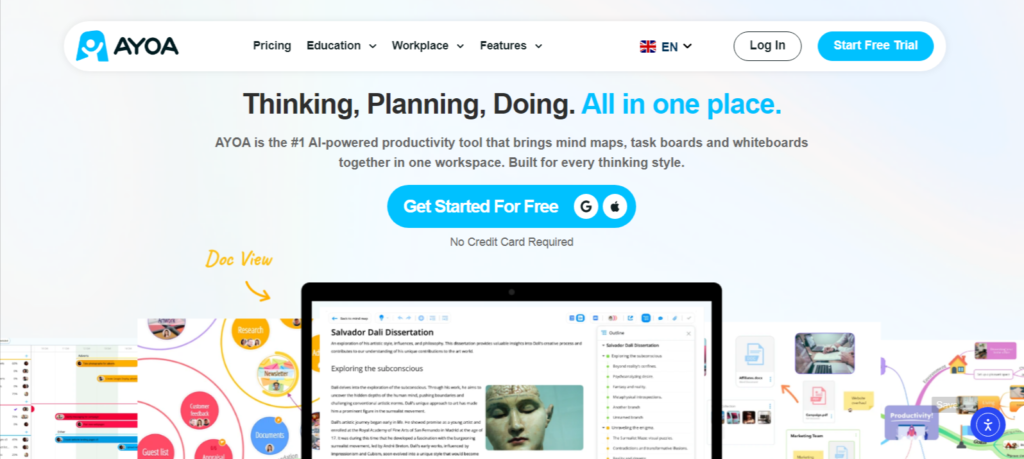
It’s basically a digital mind-mapping tool that helps you organize projects and get stuff done.
Think of it as a way to make your to-do lists look less like a boring spreadsheet and more like a colorful, interconnected web of tasks.
Ayoa is particularly great for visual thinkers and those who benefit from seeing the big picture.
It lets you create mind maps from scratch or use templates, which is pretty neat.
The interface is straightforward, so you won’t spend ages figuring it out.
Plus, they even have a dyslexia mode that changes the colors of the maps to make them easier to read, which is a thoughtful touch.
Here’s a quick look at what you can do:
- Create mind maps for brainstorming and project planning.
- Organize tasks with visual connections.
- Use templates to get started quickly.
- Benefit from features like dyslexia mode for better readability.
The free version is decent for getting a feel for mind mapping, but if you want to import things like documents or YouTube videos to turn into maps, you’ll need to upgrade.
It’s a solid tool for making your work feel a bit more dynamic and less like a chore.
3. Flown
Flown is a bit of an interesting one in the productivity app world. It’s designed to help you focus by creating a virtual co-working environment.
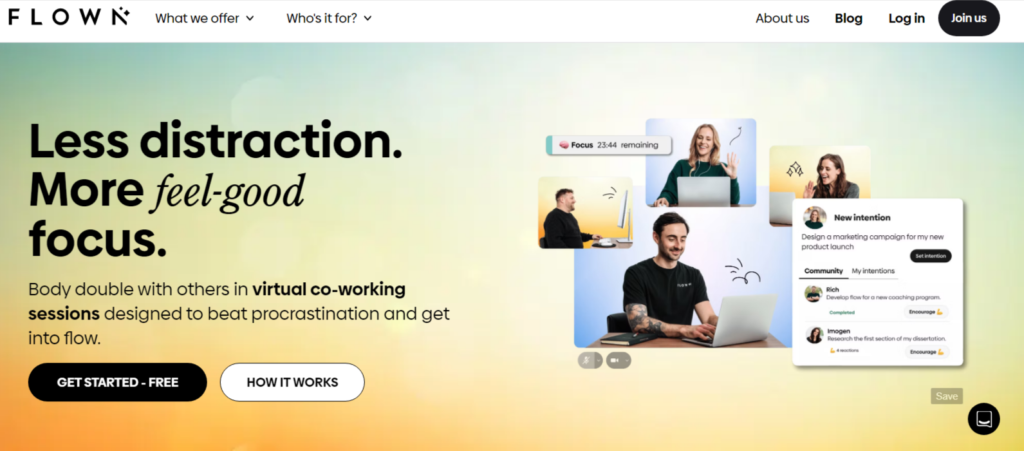
Think of it like a digital coworking space where you can join sessions with other people, often guided by a facilitator.
It’s particularly aimed at folks who struggle with procrastination or have ADHD, offering structured sessions that include things like guided meditation focused on work.
One of the core ideas is the concept of “body doubling.” The idea is that seeing others work can make you more likely to work too.
Flown offers an “all-day silent co-working space” you can just drop into whenever you need that ambient productivity buzz.
You also set intentions at the start of your workday, and there are little emoji reactions to encourage others. It’s a neat way to build a bit of accountability without intense pressure.
Here’s a quick look at what Flown offers:
- Virtual Co-working Sessions: Join others for focused work periods.
- Guided Meditation: Sessions specifically designed to help with focus and procrastination.
- “Body Doubling” Feature: A virtual space to work alongside others.
- Accountability: Setting daily intentions and using emoji reactions.
While the free plan is a good starting point, the paid plans can add up if you plan on using it regularly. It might feel like another task to manage at first,
but many users, especially those with ADHD, find it really helpful for staying on track.
Flown is available as a web app and a Progressive Web App.
The interface is pretty clean and easy to get around, with a calendar to see upcoming sessions.
It’s not for everyone, but if you need that external nudge to get work done, it’s definitely worth checking out.
4. Sunsama
Sunsama is a productivity app that really tries to help you find a better work-life balance.
It’s got this super clean interface, which I found pretty refreshing.
No crazy colors or pop-ups, just a straightforward place to get your tasks done.
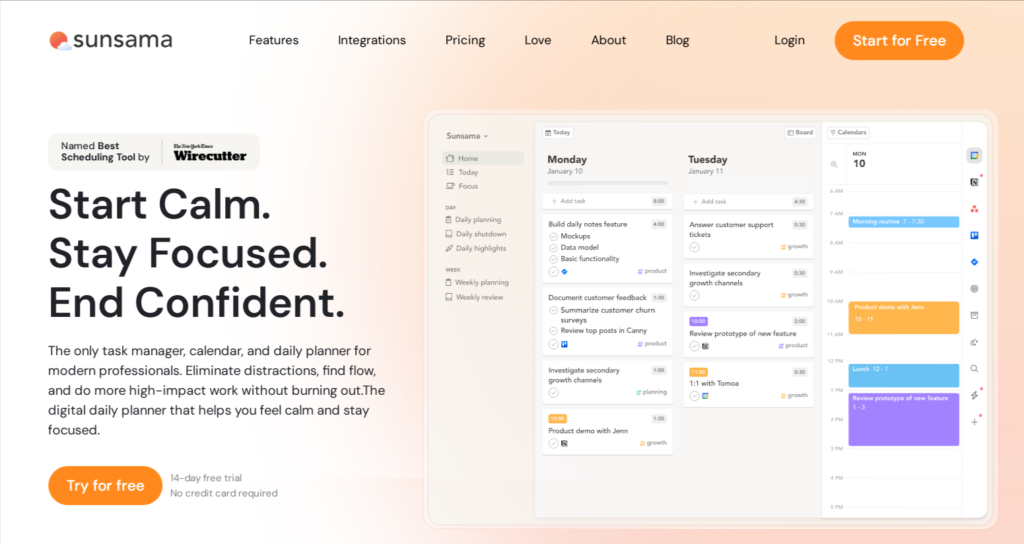
It’s designed to help you focus on one thing at a time, which is great because, let’s be honest, who doesn’t get distracted these days easily?
One of the things I liked most was the built-in Pomodoro timer.
It’s a simple feature, but it really helps break down your work into manageable chunks. Plus, Sunsama has this neat “Daily shutdown” feature.
It’s basically a way to wrap up your day by reviewing how you spent your time, both work and personal stuff. It’s a good way to see where your hours are actually going.
It also connects with common calendars like Google and Outlook, which is handy for keeping everything in one place.
Sunsama is best for individuals or very small teams who struggle with focus and want a tool to help them prioritize and manage their day without a lot of bells and whistles.
It’s not really built for big teams because adding more people gets expensive pretty fast.
If you’re someone who needs a bit of structure to avoid getting overwhelmed,
Sunsama might be worth a look. It’s not packed with tons of features, but what it does, it does pretty well.
5. Workona
If you’re someone who juggles a million browser tabs at once, Workona might just be your new best friend.
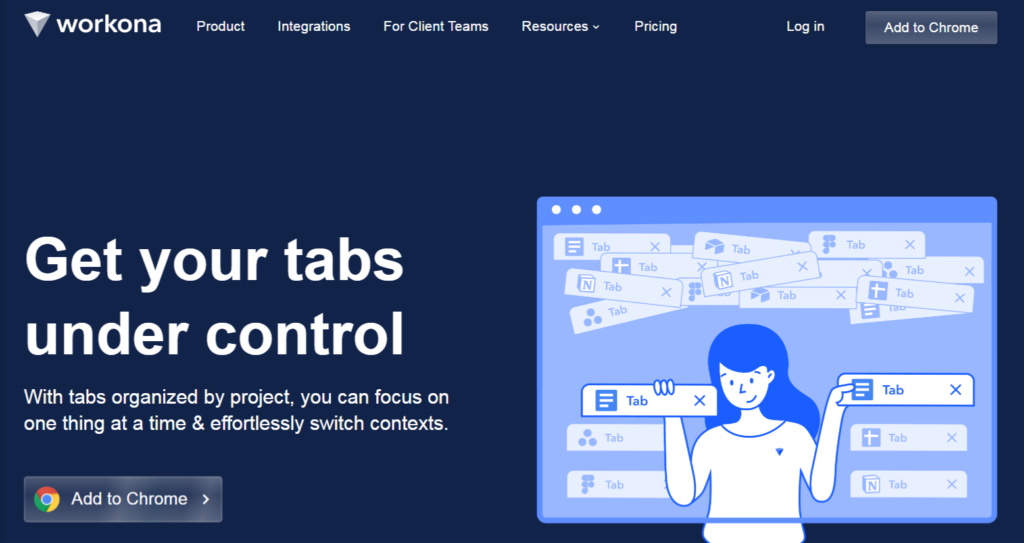
Seriously, I lose track of how many tabs I have open on any given day. Workona helps you wrangle all those open windows by letting you group them into ‘spaces.’
Think of each space as a dedicated area for a specific project or task.
So, when you’re working on, say, a client report, you can open up the ‘Client Report’ space, and it only shows you the tabs relevant to that.
It cuts down on the visual clutter and helps you focus.
It’s a really neat way to keep your digital workspace tidy.
Here’s a quick look at what it offers:
- Organize tabs into project-specific spaces.
- Search across all your open tabs and spaces.
- Integrates with other productivity tools.
It’s available on pretty much everything – Chrome, Firefox, Edge, iOS, and Android.
The free version gives you a decent number of spaces to start with, but if you find yourself needing more, the paid plans kick in.
I did find that sometimes jumping between spaces felt a bit much, and I’d still spend time hunting for a specific tab, but overall, it’s a solid tool for tab management.
6. TickTick
TickTick is a pretty solid task manager that does a lot without asking for much.
It’s available everywhere, which is a big plus, and it manages to pack in a ton of features without feeling overly complicated.
I’ve found its reminder system, especially the granular repeat options and subtasks, to be a lifesaver for keeping track of daily to-dos.
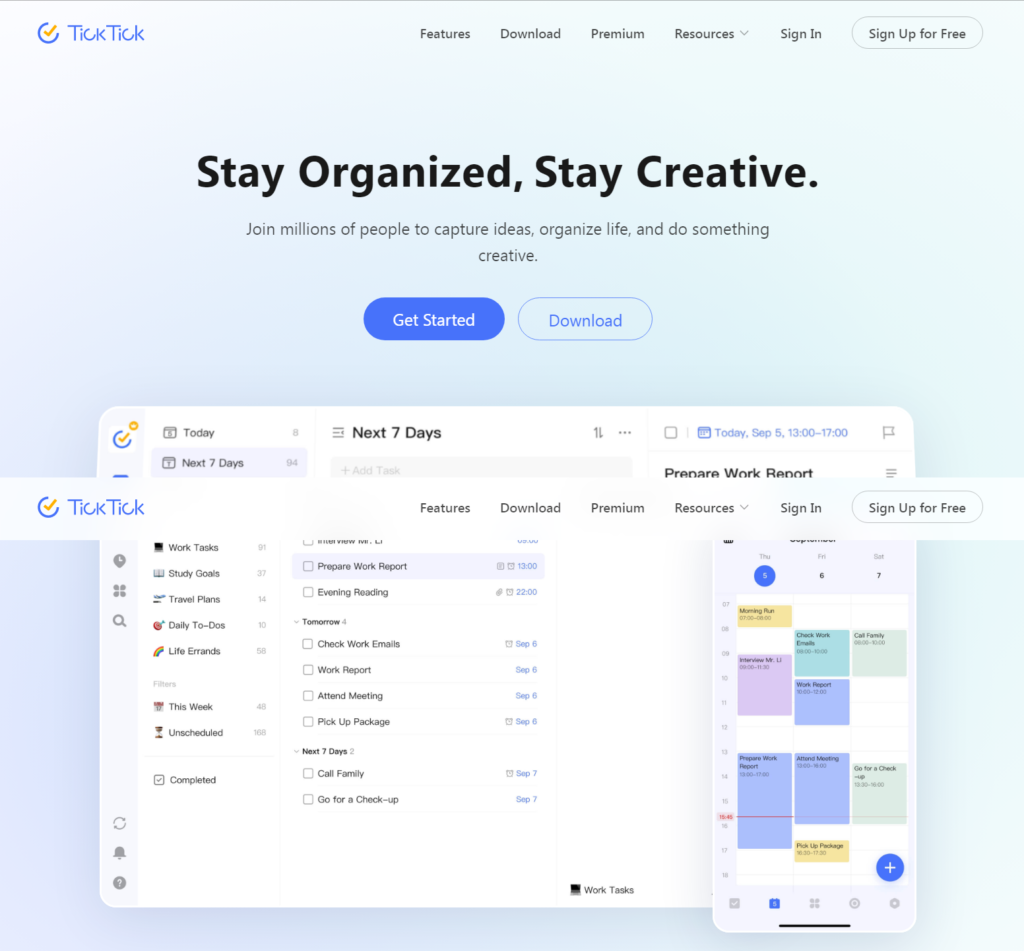
It even has a habit tracker, which I’ve used to keep tabs on things like my reading streaks – seriously, it’s been logging my progress for years.
What’s cool is that you don’t have to use every single feature.
It’s set up so you can pick and choose what works for you. For example, I use it to keep a list of books I’m reading, noting the status, author, and when I finish them.
It’s just enough detail without getting bogged down.
Here are a few things that make TickTick stand out:
- Habit Tracking: Great for building routines, whether it’s drinking more water or sticking to a workout schedule.
- Smart Reminders: Offers flexible options so you don’t miss important deadlines or tasks.
- Eisenhower Matrix: Helps you prioritize tasks based on urgency and importance, which is handy for busy days.
- “Won’t Do” List: A neat feature that lets you remove tasks from your list without feeling guilty, perfect for when priorities shift.
The free version is quite capable, but some of the more advanced features, like the calendar view and certain customization options, are locked behind the premium subscription.
Still, for most everyday task management, the free tier is more than enough to get you organized.
7. Habitica
Ever feel like your to-do list is just… a list?
Like, a boring, uninspiring list?
That’s where Habitica comes in. It takes all those mundane tasks and habits you’re trying to build and turns them into a full-blown role-playing game.
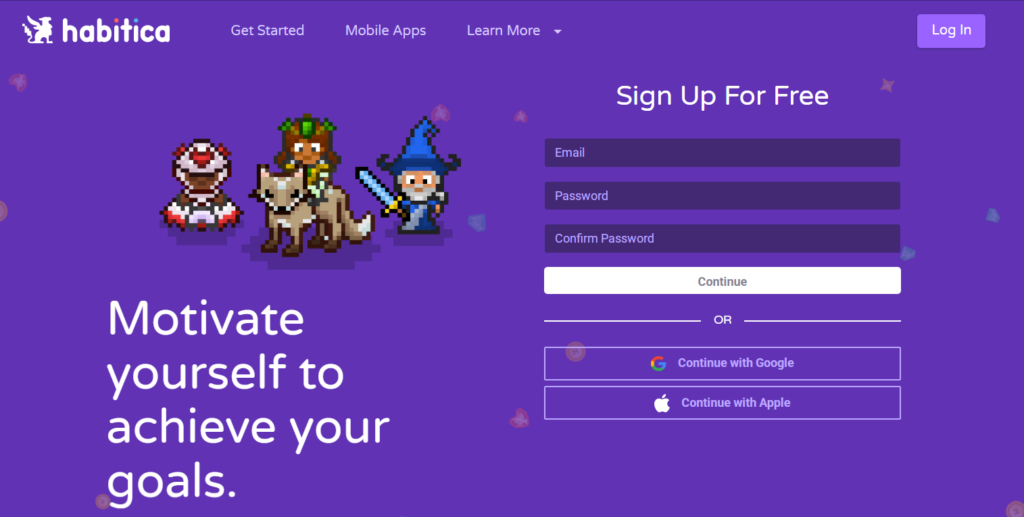
Seriously. You create an avatar, and as you complete your daily tasks or check off your to-dos, your avatar gains experience points and levels up.
It’s a pretty neat way to make productivity feel less like a chore and more like an adventure. The core idea is to gamify your workload, making it more engaging.
Habitica offers a few ways to keep you motivated:
- Daily Tasks: These are things you need to do every day, like drinking water or exercising. If you miss them, your avatar takes damage.
- To-Dos: These are one-off tasks you need to complete. Checking them off earns you rewards.
- Habits: These are actions you want to do more or less of. For example, ‘meditate’ (do more) or ‘eat junk food’ (do less).
It’s a fun system, and honestly, seeing my little avatar get stronger as I actually get things done is surprisingly motivating.
Plus, you can join parties with friends or other users to tackle quests together, which adds a social element.
It’s a unique approach to task management, especially if you find traditional methods a bit dry.
You can find more about how it works on their official website.
While the game-like structure is its main draw, it can sometimes feel like managing the app itself becomes another task.
It’s best if you’re looking for a playful nudge rather than a rigid system.
8. Milanote
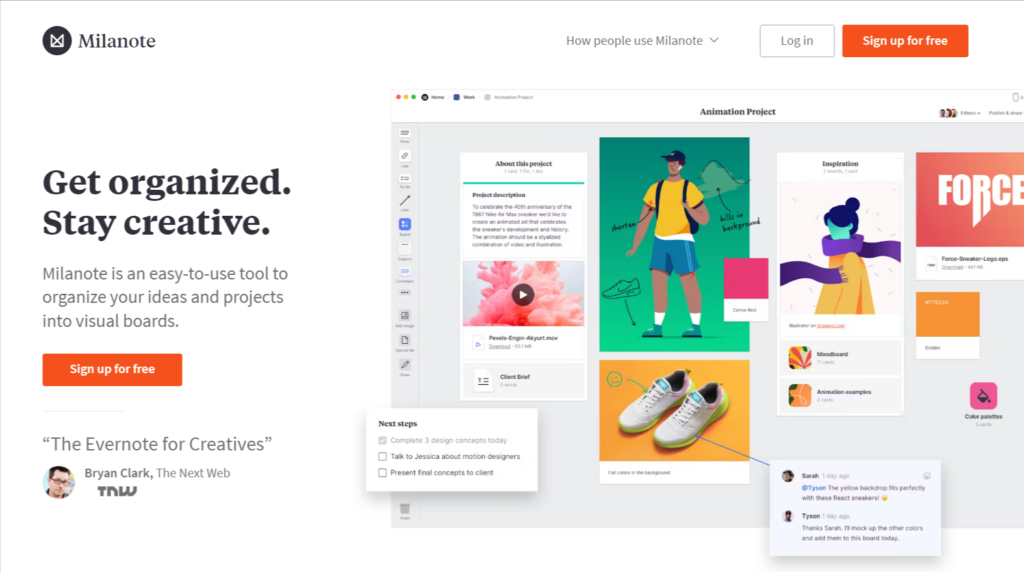
Milanote is a really cool tool, especially if you’re someone who likes to see things laid out visually.
It’s basically a digital space where you can organize your thoughts, projects, and tasks onto boards.
Think of it like a virtual corkboard where you can stick notes, images, to-do lists, and all sorts of other stuff.
This app is particularly great for creative types – designers, writers, artists, you name it.
It lets you upload your own images and files, arrange them however you want, and really build out a visual representation of your ideas.
It’s super handy for brainstorming sessions or just getting a handle on a complex project.
Here’s a quick look at what you can do:
- Create visual boards: Drag and drop notes, images, links, and files onto a flexible canvas.
- Use templates: Milanote offers a bunch of pre-made templates for things like project plans, mood boards, and content calendars.
- Collaborate with others: You can share boards, leave comments, and work together on projects.
- Organize with structure: While it’s visual, you can still create to-do lists and set deadlines.
The free version is pretty generous, giving you access to a good chunk of its features, which is awesome for individuals or small teams just starting.
One thing that might trip some people up, though, is the lack of a traditional calendar view.
If you’re someone who absolutely needs to see your entire month laid out in a grid, Milanote might feel a bit different.
It’s more about the flow and connection of ideas than strict scheduling.
9. Pumble
Pumble is a team communication app that aims to keep things simple and effective.
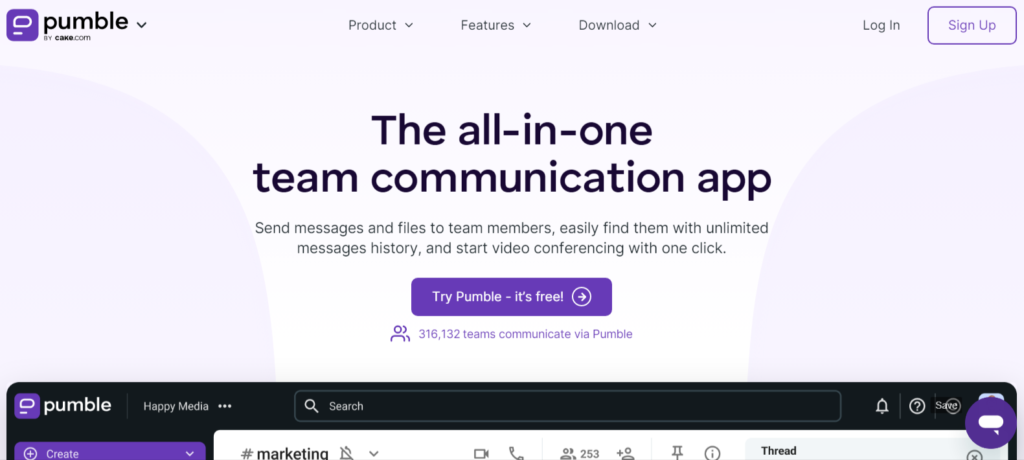
If you’re tired of overly complicated chat tools, this might be a good fit.
It offers unlimited message history, users, and channels, which is pretty generous for a free tool. It’s a solid choice for everyday team chats without a lot of fuss.
One of the things I like about Pumble is how it handles notifications.
You can really fine-tune them, so you don’t get bombarded when you’re trying to focus.
Features like mentions, do-not-disturb mode, and channel muting give you a lot of control over your alerts, which helps keep your workday on track.
It’s nice to have that ability to pause notifications for a bit when you need to concentrate on a task. You can also jump into video calls directly, which is handy for quick team check-ins.
Pumble also has a few integrations available, like with Gmail, Zapier, and GitHub, with more on the way. This means it can connect with other tools you might already be using.
While Pumble is pretty good, it does miss out on read receipts.
It would be helpful to know if your message has actually been seen, especially when you’re waiting for a response.
Still, for a free communication platform, it does a lot right.
It’s available on pretty much every device you can think of, from your desktop to your phone, making it easy to stay connected wherever you are.
If you’re looking for a straightforward way to chat with your team, check out Pumble for a look.
10. Todoist
Todoist is a solid choice if you’re looking for a straightforward way to manage your tasks.
It really shines with its clean interface, which means you’re not going to get bogged down by a bunch of complicated menus or options you don’t need.
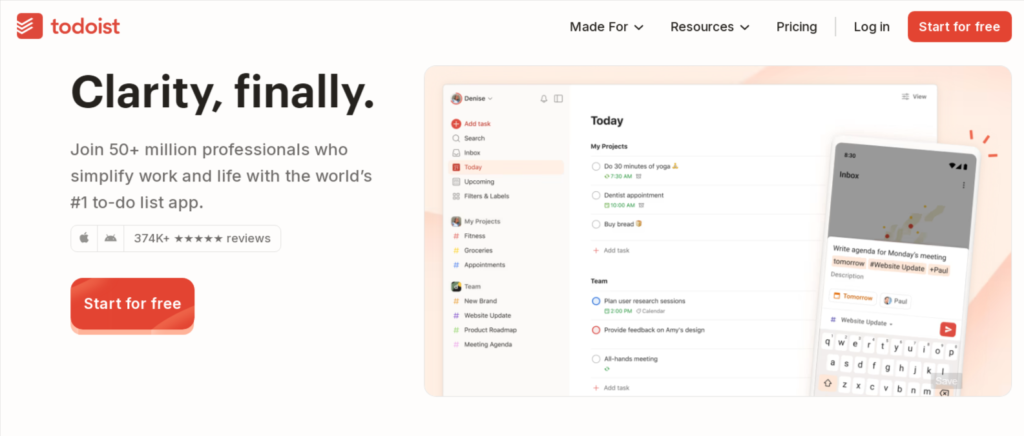
It’s all about getting your tasks done, plain and simple.
One of the best things about Todoist is how easy it is to get started.
You can quickly add tasks, set due dates, and even break them down into smaller subtasks if you need to get really granular.
Plus, you can assign priorities to make sure you’re focusing on what’s most important. It’s a great tool for personal organization and keeping track of daily responsibilities.
Here’s a quick look at what makes it stand out:
- Quick Capture: Add tasks on the fly without interrupting your workflow.
- Prioritization: Assign priority levels (1-4) to tasks.
- Subtasks: Break down larger tasks into manageable steps.
- Reminders: Set reminders so you don’t miss important deadlines.
- Cross-Platform Sync: Access your tasks on pretty much any device.
While the free version is quite capable, it does have some limitations.
You get 5 personal projects, and features like the calendar view and custom reminders are reserved for paid users.
Still, for basic task management and habit tracking, the free tier is pretty generous. It’s a good way to get a feel for how Todoist helps organize your life.
The app’s simplicity is its strength. It doesn’t try to be everything to everyone, but it excels at being a reliable to-do list manager.
If you just need a tool to keep track of what needs doing, Todoist is hard to beat.
11. Notion
Notion is a really flexible app that lets you build your own workspace. Think of it like digital LEGOs for your thoughts and tasks.
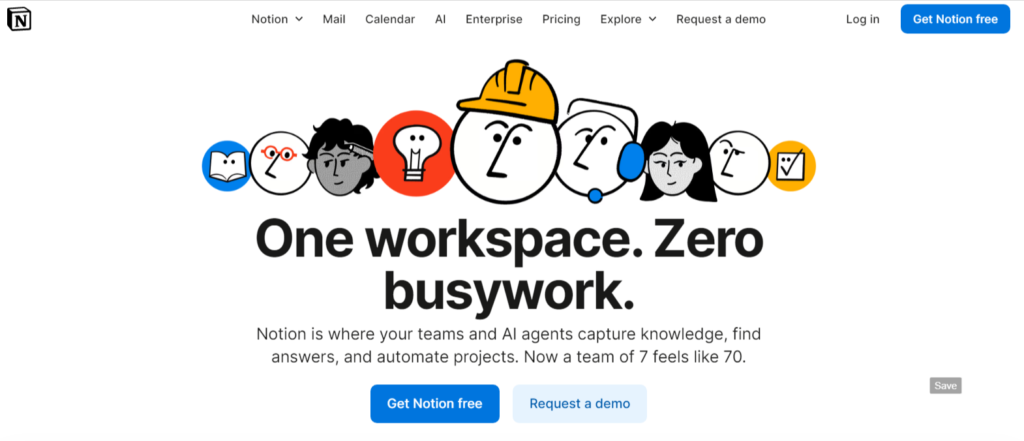
You can use it for anything from jotting down quick notes to managing big projects, and it’s all about making it work for you.
It’s got this clean look, which is nice because sometimes these apps can get pretty cluttered.
What’s cool is that Notion comes with a bunch of pre-made templates. Need a budget tracker? Got it. Want to plan out your meals for the week?
There’s a template for that, too. This really cuts down on the setup time, letting you jump right into organizing your life.
Plus, they’ve added AI features that can help summarize information or even generate content, which is pretty neat for speeding things up.
Here’s a quick look at what you can do:
- Note-taking: Keep all your thoughts, ideas, and research in one place.
- Task Management: Create to-do lists, set deadlines, and track your progress.
- Databases: Build custom tables to organize anything from contacts to inventory.
- Wikis: Create a personal knowledge base for yourself or your team.
It integrates with other tools you might already use, like Google Drive, which is always a plus.
The free version is quite generous, offering a lot of functionality for personal use.
It might take a little time to get the hang of all its capabilities, but once you do, it’s a powerful tool for staying organized.
12. Asana
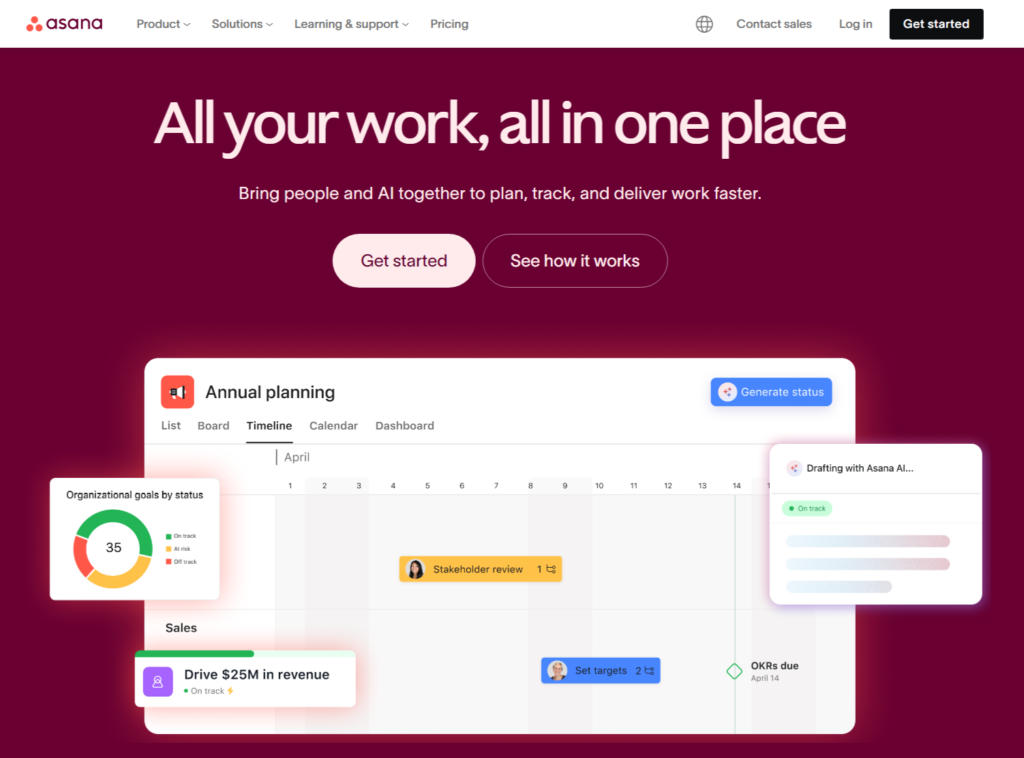
Asana is a pretty solid choice if you’re looking to get a handle on your tasks and projects, especially if you work with others.
It’s really built for managing workflows, whether you’re a solo operator or part of a bigger team.
The free version gives you a few ways to look at your work: a simple list, a board view that’s great for seeing progress, and a calendar view.
This makes it easy to see what’s coming up and what needs doing.
One of the things Asana is good at is helping you set and track goals.
You can add tasks, assign them to people, and set deadlines, which is super helpful for keeping everyone on the same page.
It also lets you see how your projects are moving along, which is always a plus.
While Asana offers a lot, some of the more advanced features, like automated workflows and detailed reporting dashboards, are tucked away in the paid plans. This is something to keep in mind if you’re on a tight budget.
Here’s a quick look at what you get in the free plan:
- List view: For a straightforward, to-do list style.
- Board view: Think Kanban, great for visualizing stages of a project.
- Calendar view: Perfect for seeing deadlines and scheduling.
They’ve also been adding AI features to help users work more efficiently, which is pretty neat.
It’s definitely a tool worth checking out if you need a structured way to manage your work and collaborate with a team.
13. Monday.com
Monday.com is a pretty popular choice if you’re looking to keep a close eye on how your projects are moving along.
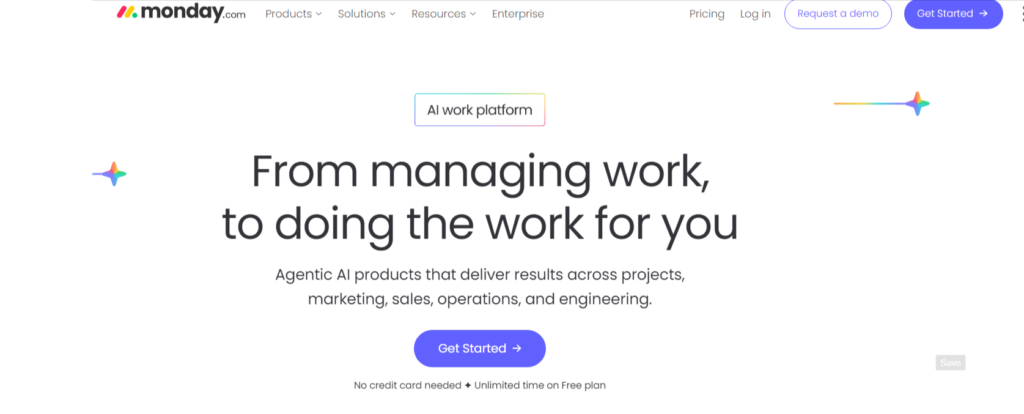
It’s really flexible, letting you set up your work processes exactly how you want them. You can customize a lot of things, which is great because everyone works a little differently, right?
I found the interface easy enough to get around, and the ability to set up custom automations was a lifesaver for tasks I tend to forget, like moving something to the ‘Done’ column.
Plus, it makes it easier to talk with your team right there in the app, cutting down on those annoying misunderstandings.
The real standout feature for me is its progress tracking.
It offers several ways to see where things stand, including a neat progress bar that visually shows you the percentage of a task completed.
It’s like a little battery icon filling up – super helpful if you’re a visual person.
However, it’s not all sunshine and rainbows, especially with the free plan.
You can’t use some of the more advanced tracking columns, like the progress bar itself, or time tracking and formula columns.
Automations are also mostly locked behind a paywall.
The free version also limits how many boards, members, and items you can have, which can be a bit restrictive if you’re managing a lot.
While monday.com offers a lot of customization and visual progress tracking, be aware that the most powerful features, especially around automation and detailed reporting, are reserved for paid users.
The free tier is good for basic task management for a couple of people, but scaling up will likely require an upgrade.
Recently, they’ve added things like easier access to your favorite items and a collaborative digital whiteboard called WorkCanvas, which could be useful for brainstorming sessions.
14. Clockify
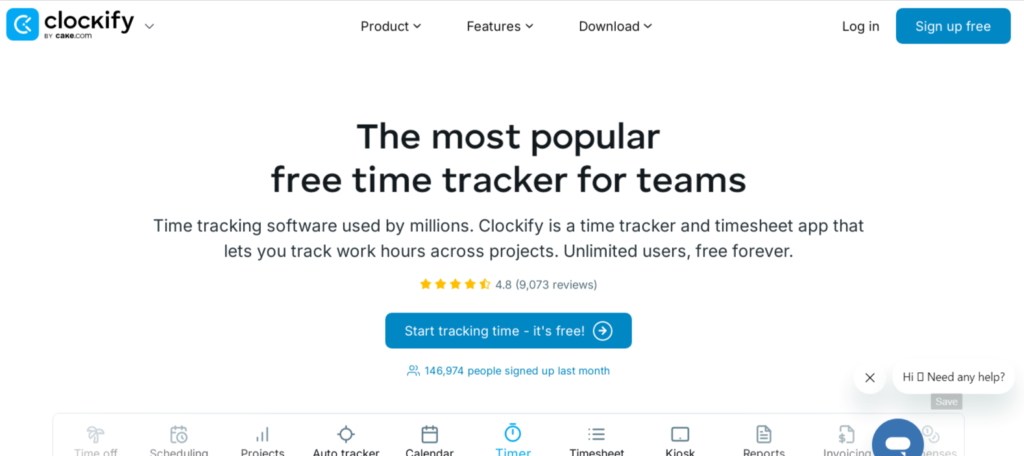
Clockify is a pretty straightforward app that focuses on one thing: tracking your time.
If you’ve ever wondered where all your hours go, or if you’re a freelancer who needs to bill clients accurately, this tool could be a game-changer.
It lets you log time spent on different tasks and projects, giving you a clear picture of your day.
The free version is surprisingly capable for basic time tracking.
You can start a timer or manually add your hours, which I found pretty easy to get used to.
It also lets you categorize your work into projects, which helps keep things organized. For anyone who needs to track billable hours, this is a big plus.
Here’s a quick look at what Clockify offers:
- Time Tracking: Log hours manually or use the built-in timer.
- Project Categorization: Group your time entries by project for better organization.
- Reporting: See visual breakdowns of how your time is spent.
- Billable Hours: Track time that you can charge to clients.
It even integrates with Pumble, another app from the same company, which is neat if you’re using both.
While Clockify’s free plan is great for core time tracking, it does miss out on some features like time-off management, setting reminders, or adding time for other team members.
These are usually reserved for paid plans.
Overall, Clockify is a solid choice if your main goal is to understand and manage your time better, especially if you’re working solo or in a small team where advanced features aren’t a priority.
15. Wrike
Wrike is a project management tool that really shines when it comes to automating your daily tasks.
If you’re tired of doing the same repetitive things over and over,
Wrike can help. It uses a simple ‘when this happens, do that’ kind of logic to set up automations.
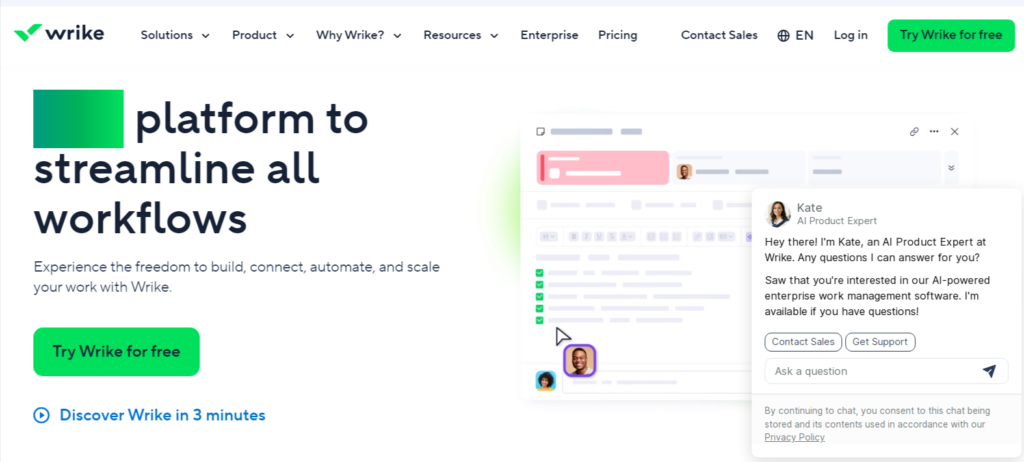
For example, you could set it up so that when a task status changes, an email automatically gets sent out. This can save a surprising amount of time and reduce the chance of things slipping through the cracks.
It also lets you customize your dashboard with different widgets, so you can see exactly what you need to see.
This makes it easier to tailor the app to your specific workflow.
One thing to keep in mind is that the free version limits how many automation rules you can create. If you have a lot of tasks and need to automate almost everything, this might be a bit of a hurdle. Also, some users find the interface a little tricky to get used to at first.
Here’s a look at their pricing:
| Plan | Price |
|---|---|
| Free | $0 |
| Team | $10/user/month |
| Business | $24.80/user/month |
| Enterprise | POA |
Wrike is available on pretty much every platform you can think of – web, Android, iOS, Windows, and macOS.
16. Zoho Projects
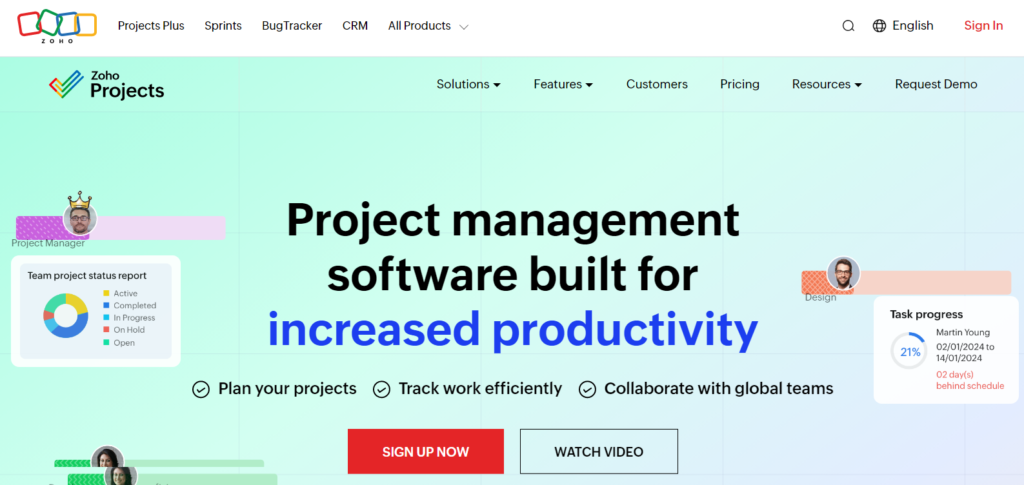
Zoho Projects is a solid choice if you’re looking for a project management tool that doesn’t break the bank.
It’s got a free tier that’s surprisingly capable, letting you get a feel for its features without paying a dime.
For those who need more, the paid plans are still quite affordable compared to many other options out there.
What I like about Zoho Projects is how it balances being feature-rich with being easy to figure out.
You can customize a lot of things to fit how your team actually works, which is a big plus.
It’s not just about ticking boxes; it’s about making the tool work for you.
Here’s a quick look at what you can do:
- Task Management: Break down projects into manageable tasks, assign them, and set deadlines.
- Collaboration Tools: Keep your team in sync with forums, chat, and document sharing.
- Time Tracking: Monitor how much time is spent on different tasks and projects.
- Reporting: Get insights into project progress and team performance.
If you’re managing multiple projects or working with a team, having a central place to keep everything organized is a lifesaver.
Zoho Projects aims to be that place, offering a good mix of functionality and user-friendliness, especially if you’re on a budget.
17. Google Workspace
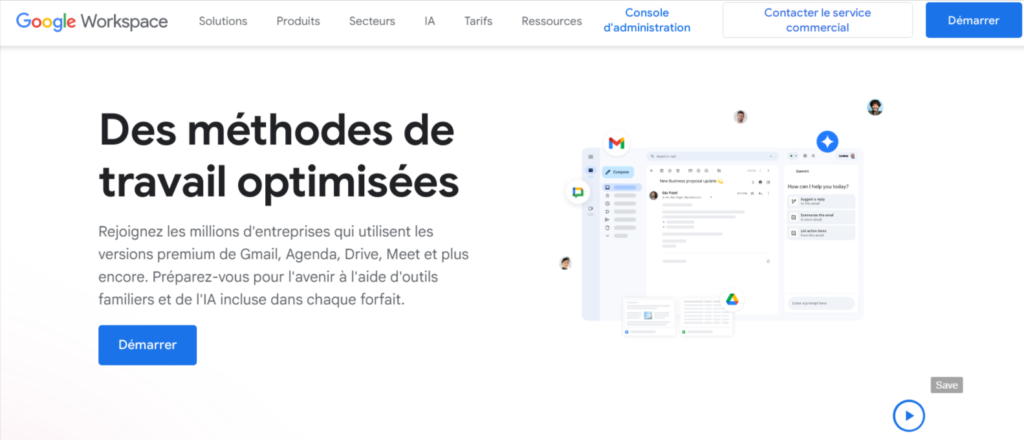
Okay, so Google Workspace.
You probably already use some of it, right? Gmail, Calendar, Docs – they’re practically part of the furniture for most people these days.
It used to be called G Suite, but the name change didn’t really change the core idea: a bunch of Google’s popular apps bundled together.
The best part?
For personal use, it’s completely free with a Google account. That’s a huge win for anyone trying to keep costs down. You get access to tools like:
- Google Docs: For writing up reports, notes, or anything else. It’s like a free version of Microsoft Word, but it lives in your browser.
- Google Sheets: If you need to crunch numbers or make a simple budget, this is your go-to. Think of it as a free Excel.
- Google Slides: For putting together presentations without needing fancy software.
- Google Drive: This is where all your files live. It syncs across your devices, so you can get to your stuff from anywhere.
- Google Calendar: Honestly, this is a lifesaver for keeping track of appointments, deadlines, and meetings. It sends you reminders, which is pretty handy.
- Google Meet: For video calls with friends, family, or colleagues.
Everything saves automatically as you work, which means fewer panicked moments about losing your progress.
It’s all pretty straightforward to use, too. You don’t need to be a tech wizard to figure out how to create a document or schedule a meeting.
While businesses have to pay for extra features and more storage, the free version is incredibly capable for individuals and small teams just getting started.
18. Joplin
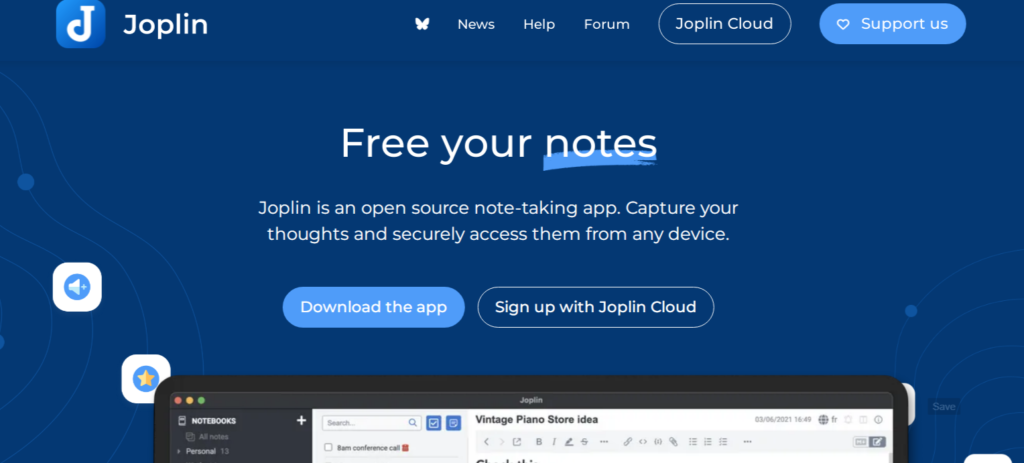
If you’re on the hunt for a free note-taking app that feels a lot like Evernote but without the price tag, Joplin is a solid choice.
It’s open-source, which is always a plus for transparency, and it works across pretty much every device you can think of.
You get the basic tools you need to jot down ideas, organize them, and find them later.
It’s not overloaded with fancy features, but it gets the job done for most people.
Joplin lets you choose how your notes are stored.
You can use your own cloud storage, like Dropbox or OneDrive, or opt for their paid Joplin Cloud service if you want them to handle it.
Here’s a quick look at what Joplin offers:
- Note-taking: Create rich text or markdown notes.
- Organization: Use notebooks and sub-notebooks to sort your thoughts.
- Synchronization: Sync notes across multiple devices using various cloud services.
- Web Clipper: Save articles and web pages directly into Joplin.
- Search: Quickly find notes with its powerful search function.
While Joplin doesn’t have all the bells and whistles of some paid alternatives,
its focus on core functionality and its open-source nature make it a great option for anyone needing a straightforward way to manage their notes without spending money.
19. Teamwork
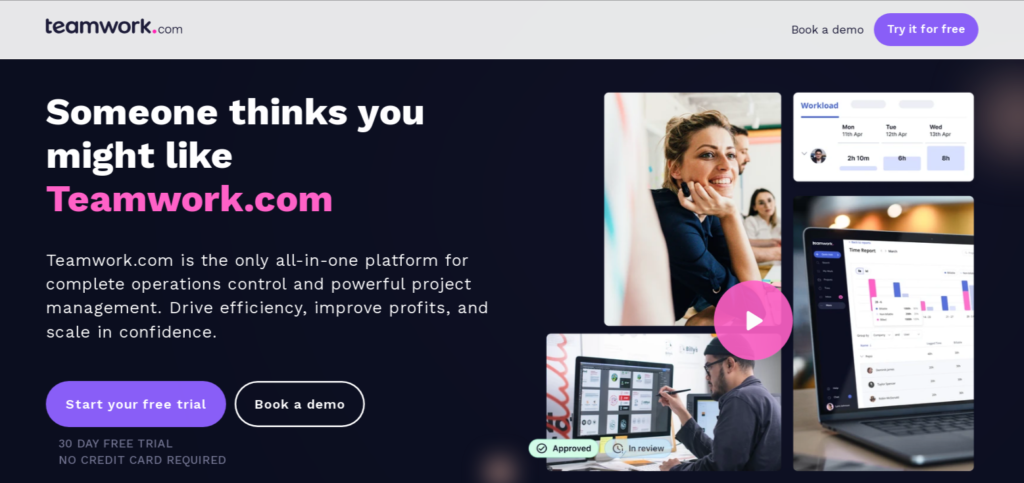
Teamwork is a project management tool that’s pretty good for smaller to medium-sized businesses.
If you need to get a handle on your projects without a huge learning curve, this might be worth a look. It gives everyone on the team a login so they can see their assigned tasks and update their progress.
The project managers or team leads can set up the bigger picture stuff, like deadlines and milestones.
It really helps make collaboration more open because everyone can see what’s going on.
Here’s a quick look at what it offers:
- Task management: Assign tasks, set due dates, and track progress.
- Team communication: Keep conversations organized within projects.
- Time tracking: Monitor how much time is spent on different tasks.
- Reporting: Get insights into project performance.
While Teamwork has a free plan, it’s quite basic.
For more features, you’ll need to look at their paid options, which start around $10.99 per user per month.
It’s not the cheapest out there, but if your team needs a solid way to manage projects, it could be a good fit.
20. CAKE.com Bundle and more
Looking for a way to get a few solid productivity tools without breaking the bank?
The CAKE.com Bundle is a pretty neat option. It pulls together three of their apps:
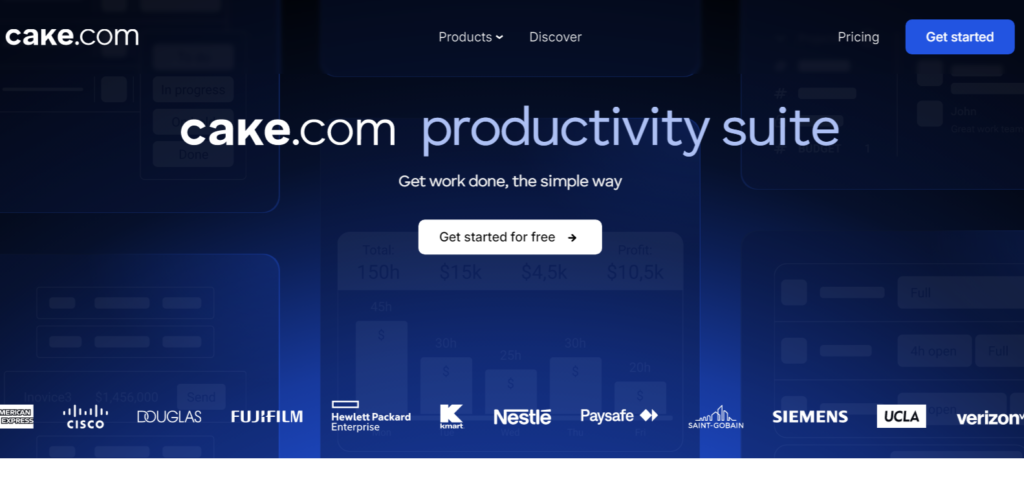
Clockify, Pumble, and Plaky.
Think of it as a little productivity package deal.
Clockify is your go-to for time tracking. It helps you see where your hours are actually going, which is super useful for figuring out what’s taking up too much time.
Pumble is their communication app, meant to make team chats smoother than endless email chains. And then there’s Plaky, which is all about managing tasks and projects.
It aims to keep things organized and cut down on distractions.
This bundle is a good way to get a taste of different productivity functions all in one place.
It’s especially handy if your team needs a mix of time tracking, communication, and project management without signing up for a bunch of separate services.
Here’s a quick look at what you get:
- Clockify: Time tracking to understand your workflow.
- Pumble: Team communication to keep everyone in the loop.
- Plaky: Task and project management for better organization.
It’s a solid choice if you’re trying to streamline your work and want a unified approach to managing your day-to-day tasks and team interactions.
The free tier for these apps gives you a good starting point to see if they fit your needs.
Wrapping Up
So there you have it, a bunch of free apps that can actually help you get stuff done without costing you a dime.
It’s not about working more, it’s about working smarter, right?
These tools can take care of the boring bits, help you keep track of everything, and maybe even make work a little less of a drag.
Give a few of them a try and see what sticks.
You might be surprised at how much easier your day gets when you’ve got the right help.
Frequently Asked Questions
What’s the main goal of productivity apps?
The main goal of these apps is to make your life easier by cutting down on boring or repetitive jobs.
They help you get organized, stay focused, and free up your time and energy for things you actually enjoy doing, rather than just working more.
Can I use these apps for work and personal stuff?
Absolutely! Many of these apps are great for managing your work projects and team tasks.
But they’re also super useful for organizing your personal life, like planning events, setting goals, or just keeping track of your daily to-do list.
Are there apps for different ways of working?
Yes, there are! Some apps are perfect for visual thinkers who prefer tasks laid out in a specific way.
Others are best for people who need help staying focused, while some are designed for teams to communicate and work together smoothly.
What if I’m not good at sticking to tasks?
Don’t worry, there are apps for that, too! Some apps use fun game-like features to make completing tasks feel more like playing a game, which can be a great motivator.
Others help you build good habits step by step.
Do I need to pay for these apps?
The great thing is that many of these apps offer a free version that’s really good and can help you a lot.
Some might have paid options with extra features, but you can often get a lot done without spending any money.
How do I know which app is best for me?
Think about what you need the most help with. Are you disorganized? Do you have trouble focusing? Do you need to work better with others?
Reading about what each app is best for, like organizing tasks or improving communication, can help you pick the right one for your needs.